Reading the diagnostic lights on a Dell OptiPlex 7010
How to interpret the amber and white blink patterns of the diagnostic light to spot a memory, motherboard, or CMOS battery issue before calling support.
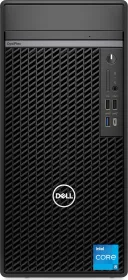
A language told in blinks
When an OptiPlex 7010 refuses to start normally, the diagnostic light on the chassis communicates the nature of the problem through a sequence of amber blinks followed by white blinks. Each combination points to a specific cause, which often makes it possible to identify the issue before even opening the case or contacting support.
The most common combinations
Two amber blinks followed by one white blink signals no memory detected: check that the module is properly installed. Two amber followed by two white points to a memory failure, addressed by resetting the module in question. Two amber followed by three white indicates invalid memory installed, requiring the same check. Two amber followed by four white points to a system board, chipset, clock, or keyboard-controller error, addressed by flashing the latest BIOS version. Two amber followed by five white signals a failed CMOS battery, resolved simply by resetting its connection.
When the fix goes beyond a simple check
Three amber followed by one white indicates an unrecoverable SPI flash failure, which requires replacing the system board. Three amber followed by two white points to a CPU failure: run the Dell SupportAssist or Dell Diagnostics tool first, and only replace the system board if the problem persists. Three amber followed by three white points to a system board failure, possibly including BIOS corruption — updating the BIOS is the first step to try before any hardware replacement.