Security: fingerprint, face recognition, and Secure Folder on the Galaxy S26 Ultra
Register your fingerprint and face, protect a public Wi-Fi connection, isolate sensitive apps in a secure folder.
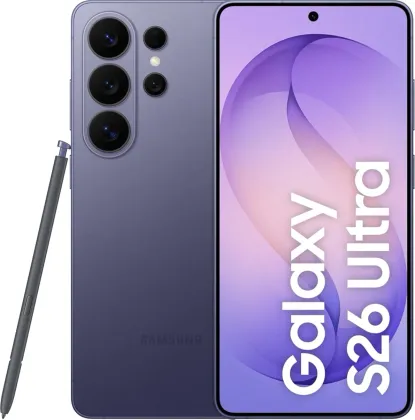
Registering and using face recognition
The face sensor is set up from Settings > Security and privacy > Lock screen and biometrics > Face recognition, ideally in a well-lit place away from direct sunlight for an accurate registration. You can add an alternative appearance (with or without glasses, for example) to improve recognition reliability in different situations. Note: face recognition remains less secure than a pattern, PIN, or password, and cannot be used for the very first unlock after a phone restart.
Registering your fingerprint
The fingerprint is set up in the same place, under Fingerprints. For optimal registration, it's best to prioritize the fingers you use most often day-to-day, and make sure both the in-display sensor, located at the bottom of the device, and the finger itself are clean and dry. An option also lets you keep the sensor active at all times, even with the screen off, to unlock the phone faster when taking it out of your pocket.
Securing your connection on public Wi-Fi
Secure Wi-Fi automatically encrypts the connection and blocks ad tracking when connecting to an unsecured network, typically in a café or an airport. A limited free protection is included each month, with the option to subscribe to unlimited paid protection for heavier use.
Isolating sensitive apps and data
Secure Folder creates a storage space completely separate from the rest of the phone for certain apps and personal data, locked independently from the rest of the device. Content stored there cannot be transferred to another device via standard sharing methods like Wi-Fi Direct or USB, making it a good place for genuinely confidential documents or photos.
The Zonelectro tip
Before setting up Secure Folder, turn on the code reset option via your Samsung account: it's the only way to regain access if the folder's code is forgotten, otherwise all the content it protects becomes permanently inaccessible.
This guide is about
 Samsung Galaxy S26 Ultra 5G