Samsung Notes: taking notes efficiently on the Galaxy S26 Ultra
Handwriting, voice transcription, syncing across devices, capturing a web page: making good use of the Notes app.
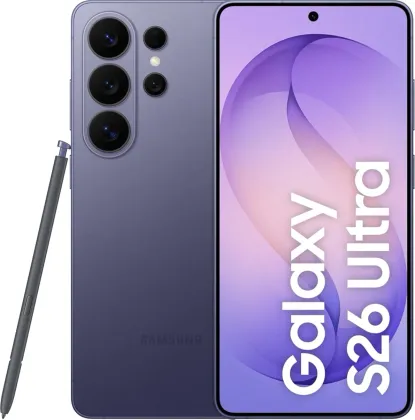
Creating a note, by keyboard or by hand
A note can be composed either with the keyboard or freehand, by drawing or writing directly on the screen with your finger or the S Pen. On compatible models where finger input isn't enabled by default for handwriting, the corresponding option can be found in the app's More options menu.
Cleaning up and converting your handwriting
Handwritten text can be automatically straightened to look neater (Clean up handwriting > Align handwriting), or directly converted into printed text (Convert to text). For instant conversion while writing itself, the S Pen to text option transforms what's written with the stylus as you go.
Recording your voice directly in a note
By inserting a voice recording into a note (Insert icon > Voice recording), the text written or typed during the recording stays synced with the audio: replaying the note scrolls through the text in sync with playback of the corresponding recording.
Syncing your notes across all your devices
By enabling sync with Samsung Cloud (app Settings menu), notes become accessible and editable from any device signed into the same Samsung account, without needing to transfer them manually.
Pinning an important note to the home screen
A particularly useful note can be pinned directly to the phone's home screen (More options > Add to > Home screen), for quick access at a glance without opening the app.
Capturing content directly into a note
By opening the Notes app in split-screen alongside a web page or a photo in Gallery, a link or an image can be dragged directly into the note being written, without going through a regular copy-paste.
The Zonelectro tip
For meetings or classes, combine synced voice recording with a few quick handwritten notes taken at the same time: when reviewing later, each part of the text jumps straight to the matching moment in the recording.
This guide is about
 Samsung Galaxy S26 Ultra 5G