Samsung DeX: turning your Galaxy S26 Ultra into a computer
Connect your phone to an external display, use a keyboard and mouse, turn the phone screen into a trackpad: desktop mode explained.
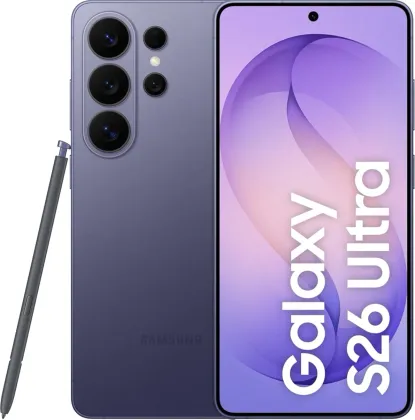
Connecting to an external display, with or without a cable
Samsung DeX turns the phone's interface into a computer-like environment as soon as it's connected to an external display. The connection can be wireless (Settings > Connected devices > Samsung DeX > Connect wirelessly, provided the TV or monitor has its screen mirroring feature enabled), or wired via a USB-C to HDMI adapter.
Keeping control of your phone while DeX is active
The big advantage of DeX is being able to keep using the phone normally while the external display shows the desktop environment. The two uses aren't mutually exclusive: you can reply to a message on the phone while a document stays open on the big screen.
Keyboard, mouse and trackpad
A wireless keyboard and mouse can be connected directly to control the DeX environment. A handy option even lets you move the mouse cursor from the external display over to the phone screen (Settings > Connected devices > Samsung DeX > Connected screen > Move pointer to phone). Without a mouse, the phone screen itself can act as a trackpad via the dedicated icon in the navigation bar.
A virtual keyboard always available
To type text without a physical keyboard connected, a virtual keyboard automatically appears on the phone screen as soon as a text field is selected in the DeX environment — whether to write a message or a note.
The Zonelectro tip
DeX closes certain running apps when desktop mode starts and stops: make sure to save your work before plugging in or unplugging the external display, rather than finding out the hard way afterward.
This guide is about
 Samsung Galaxy S26 Ultra 5G