The S Pen on the Galaxy S26 Ultra: every feature to know
Air command, screen-off note-taking, hover translation, annotated screen capture: the complete guide to S Pen features.
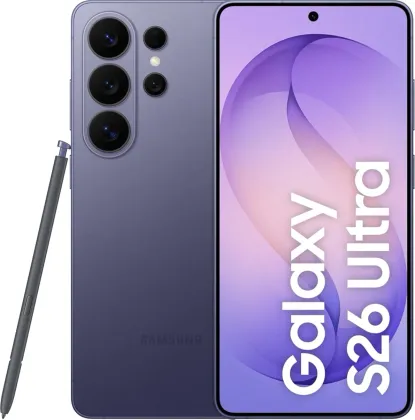
Air command, the S Pen's central menu
Tapping the Air command icon with the S Pen opens a round panel giving direct access to the stylus's main functions and shortcuts to your most-used apps. This icon can be moved anywhere on the screen, or removed if it's in the way, from Settings > Advanced features > S Pen > Air command.
Capturing and annotating the screen in one gesture (Screen write)
From the Air command panel, the Screen write option instantly captures the displayed screen and opens the annotation tools directly so you can write or draw on it, before sharing it or saving it to the Gallery. It also works on a long webpage, capturing content beyond the visible area.
Translating a word or unit by hovering over it
Still from Air command, the Translate option lets you hover the S Pen over a word or sentence to get an instant on-screen translation, including units of measurement. Tapping the playback icon even lets you hear the pronunciation of the original text.
Writing without turning on the screen (Screen off memo)
You don't need to unlock the phone to jot down a quick note: by detaching the S Pen or double-tapping the off screen while holding down the pen's button, a writing space opens directly. Once the note is saved, it's automatically stored in Samsung Notes — and can even be pinned to the Always On Display to stay permanently visible.
Converting handwriting into text
The S Pen to text option (Settings > Advanced features > S Pen) automatically converts handwriting entered into a text field, such as a search bar, directly into printed text. Handy for filling out a form or searching for something without using the keyboard.
Selecting text or items on the fly (Pen Select)
By holding down the S Pen button while dragging it across text or a list of items, several elements can be selected at once, then copied, shared, or moved to another app — a real time-saver compared to a regular finger selection.
Previewing without opening (Air view)
By simply hovering the S Pen over an element on screen, without touching it, a preview window appears with a glimpse of the content and sometimes quick actions directly accessible.
The Zonelectro tip
The most underused feature is probably the screen-off memo pinned to the Always On Display: for a shopping list or a number you need to remember quickly, it avoids opening any app at all and stays visible at a glance right on the lock screen.
This guide is about
 Samsung Galaxy S26 Ultra 5G