Customizing the Action button on Apple Watch Ultra
The seven possible functions for this dedicated orange button, and how to change its assignment at any time.
A button chosen right from setup
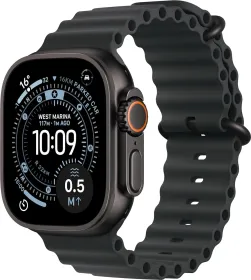
During initial setup, Apple Watch Ultra prompts you to pick a function for the Action button, the distinctive orange button on the side of the case. Workout is offered by default: a first press opens the Workout app or starts a session, and the second press then depends on the workout type chosen.
Seven functions to choose from
Beyond Workout, the Action button can be reassigned to: Stopwatch (starts the timer, second press marks a lap); Waypoint (drops a Compass waypoint); Backtrack (records the route you've traveled); Dive (starts a dive session); Flashlight (toggles the light on and off); and Shortcut (launches a custom shortcut).
Changing the assignment at any time
There's no need to go back through initial setup: opening the Settings app on the watch, then tapping Action Button, lets you change its assignment whenever you like.
A shortcut to move faster
Some functions offer additional options when the Action and side buttons are pressed simultaneously — a combination worth knowing to save time out in the field.
This guide is about
Apple Watch Ultra 3