Sharing content and controlling your connected devices with the Galaxy S26 Ultra
Quick Share, screen mirroring to a TV with Smart View, shared listening with Galaxy Buds, smart home with SmartThings.
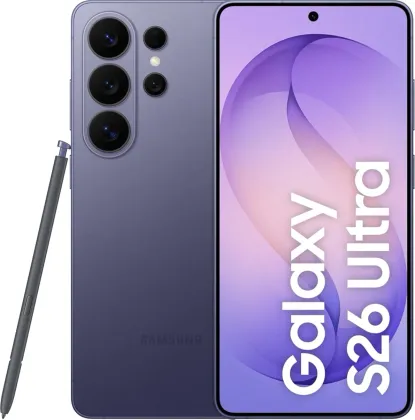
Sending a file to a nearby device with Quick Share
Quick Share lets you share a photo, video or file with a nearby device or contact, without a cable or manual Bluetooth pairing. The settings (Settings > Connected devices > Quick Share > Who can share with you) let you choose who can send you content: no one, only your own devices, your contacts, or everyone nearby. A private sharing option also encrypts the content sent, preventing the recipient from saving or forwarding it.
Displaying the phone screen on a TV with Smart View
From the quick settings panel, Smart View lets you mirror the phone's display onto a compatible TV or monitor. To share only a specific video on the big screen while continuing to use the phone normally for something else (replying to a message, for example), the app cast option isolates just that app on the external display.
Listening to the same music together with Galaxy Buds
The Music Share feature lets you share an already-connected Bluetooth speaker with someone else, or listen to the same audio content simultaneously on your own Galaxy Buds and a friend's, provided both pairs are from the Galaxy Buds range and connected to their respective phones.
Controlling your smart home with SmartThings
The SmartThings app centralizes the management of compatible home devices (lighting, appliances, sensors...), with automatable routines and an AI-based energy mode to reduce the consumption of connected devices. A dedicated menu in the app details the compatible devices and their setup.
The Zonelectro tip
If you often share photos with the same people, set Quick Share to "Your contacts" rather than "Everyone": sharing stays just as fast, but your phone no longer shows up in the list of devices discoverable by strangers nearby.
This guide is about
 Samsung Galaxy S26 Ultra 5G