Multi window: using several apps at once on the Galaxy S26 Ultra
Split screen, floating windows, saved app pairs: make the most of the S26 Ultra's large screen to truly multitask.
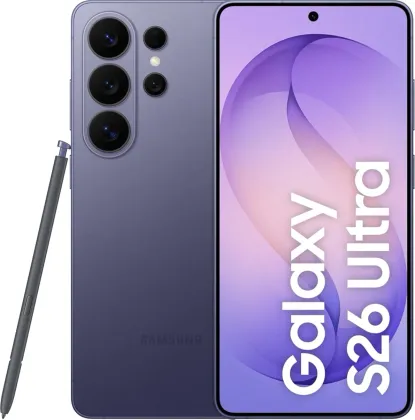
Two ways to launch multi window
The Recent apps button lets you pick an app and open it directly in split screen or as a floating window. A faster alternative is to enable the dedicated swipe gesture (Settings > Advanced features > Multi window): a simple swipe from the edge of the screen then opens the split view or floating window without going through the recent apps screen.
Adjusting and saving your app combinations
Once two apps are open side by side, the handle between the two windows lets you drag to resize each one. That same handle also lets you save the combination as an app pair, so you can instantly reopen the same two apps together next time, without selecting them one by one.
Freely moving a floating window
In floating window (pop-up view) mode, a dedicated handle lets you move the window anywhere on the screen, or simply tap it to access a quick menu — to resize it, close it, or return it to full screen.
Multi window is resource-hungry
Running several heavy apps at once (especially recording a video while another app runs in the background) is one of the situations that puts the most strain on the battery and can cause a slight rise in the device's temperature. This isn't a flaw in the phone: it's simply the cost of true multitasking on a large screen.
The Zonelectro tip
To take notes while watching a video or browsing a webpage, pair Samsung Notes as a floating window with your main full-screen app: the note stays accessible at all times without ever interrupting what you're watching.
This guide is about
 Samsung Galaxy S26 Ultra 5G