Galaxy AI: the smart features of the Galaxy S26 Ultra
Real-time translation, writing assistant, AI photo editing, Circle to Search: an overview of what Galaxy AI really changes day to day.
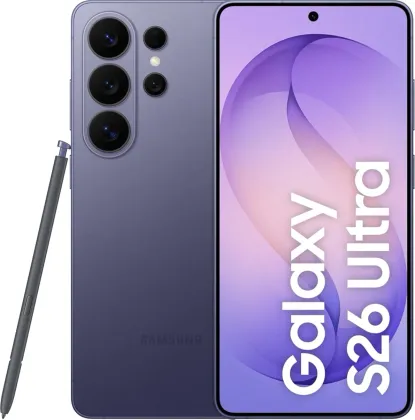
Translating a call or message without leaving the conversation
The Galaxy S26 Ultra can translate a live voice call: once the option is enabled in the Phone app's settings (More options > Settings > Live translate), simply choose the languages of both speakers, then start the translation during the call. The same principle applies to messages: within a conversation, the keyboard's assist icon offers a translation of a received message or the one you're writing, displayed directly below the text.
A writing assistant built into the keyboard
Still from that same assist icon on the Samsung keyboard, several writing tools are available: spelling and grammar correction, tone adjustment, summarizing a text that's too long, automatic formatting into bullet points or a table, and even generating a full text from a simple given topic. Great for quickly rephrasing a professional message or clarifying a draft.
Live interpreter for conversations and meetings
By dragging the side panel (Edge panel) toward the center of the screen and opening Interpreter, the phone translates a spoken conversation in both directions. A dedicated listening mode also lets you follow a conference or meeting live in a different language, without needing a second device.
Summarizing and transcribing your notes, recordings, and calls
In the Notes app, the assist icon lets you automatically reformat or summarize a note, fix mistakes, or transcribe a voice recording inserted into the note. The same principle applies in Voice Recorder: once a recording is transcribed into text, it can be summarized or translated in one tap. For calls, the Transcript assist option (Phone > Settings > Call recordings) automatically records the conversation and generates a transcript that can be reviewed and summarized afterward.
Editing a photo by simply describing what you want
From the Gallery, the photo assist tool lets you remove an unwanted person or object from an image (with automatic background regeneration), move or resize a subject, add an element by describing it in text, or even change the overall style of the photo. These edits take just a few taps, with no external software, directly on the phone.
Circle to Search and Now Brief: search and get informed without switching apps
A long press on the Home button lets you circle any element shown on screen — an image, text, an object in a video — to instantly search for it, without leaving the app you're in. Now Brief, accessible from the side panel, offers a personalized summary generated by AI based on your interests, a bit like an automatic news digest.
The Zonelectro tip
To stay in control of your data, go to Settings > Galaxy AI: the "Process data only on device" option limits sending information to servers, at the cost of a slight drop in accuracy for some features that require online processing. A good setting to enable if you use AI heavily for personal documents.
This guide is about
 Samsung Galaxy S26 Ultra 5G