Advanced features: gestures, Dual Messenger, and digital wellbeing on the Galaxy S26 Ultra
Wake the screen by lifting the phone, use two accounts on the same messaging app, limit your screen time: advanced settings worth discovering.
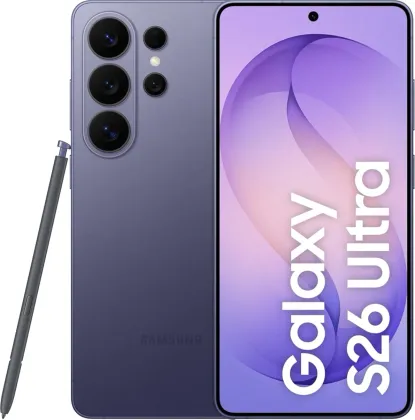
Gestures to avoid touching the screen
Several automatic gestures can be enabled from Settings > Advanced features > Motions and gestures: waking the screen simply by lifting the phone, turning it off or on with a double tap, or capturing a screenshot with a swipe of the hand across the screen. A vibration can also alert you to missed notifications as soon as the phone is picked back up.
Using two accounts on the same messaging app
Dual Messenger (Advanced features > Dual Messenger) installs a second instance of a compatible messaging app, identifiable by a small distinctive icon, so you can use two different accounts without constantly logging in and out. Some features of the app may, however, be limited on this second instance.
Monitoring and limiting your screen time
Digital Wellbeing and parental controls (accessible directly from the main settings) let you set per-app timers, a daily screen time goal, or monitor your phone use while walking or driving. Content restrictions and a full parental control mode are also available for family use.
Video effects and a custom avatar
During a video call or in compatible apps, video effects let you blur the background, apply beauty effects, or keep only your own face visible by blurring everyone else on screen. A custom Galaxy avatar, created once, also automatically generates reusable stickers for messages or social media.
The Zonelectro tip
Digital Wellbeing's parental controls can also be used on yourself: setting a strict timer on social media via App timers is often more effective than a good resolution you don't keep.
This guide is about
 Samsung Galaxy S26 Ultra 5G