Preventing screen burn-in on an LG OLED TV
Image retention affects every OLED screen without exception — how the Pixel Cleaning feature limits it, and the settings that help day to day.
A trait of the technology, not a manufacturing defect
Unlike a conventional LED/LCD screen, an OLED panel generates its own light pixel by pixel, which achieves a perfect black and a sharp image with no motion blur. That same trait makes OLED panels prone to image retention: displaying the same image for a long time, or repeatedly, can leave a lasting mark. This phenomenon affects every OLED panel without exception — recommended picture modes minimize it, but no current technology eliminates it entirely.
Automatic pixel cleaning
The TV includes a feature that checks the screen's condition and prevents retention by automatically calculating the optimal time to run, based on cumulative viewing time — typically when the TV is switched off. Horizontal lines may appear at the top and bottom of the screen during the process: that's normal. This feature only runs while the TV stays plugged into power. It can also be triggered manually from the OLED Care settings.
Images that deserve particular attention
Black bars at the top, bottom, or sides of the screen, 4:3 or 21:9 aspect ratios, fixed channel logos, program numbers, game console icons, or set-top box menus left on screen for long periods — all of these encourage retention.
Settings that help day to day
Turn on the Eco picture mode, lower the OLED pixel brightness in the advanced settings, set logo brightness to a high level in OLED Care, use vertical zoom or 4-way zoom to hide black bars, and turn off prolonged display of connected devices' setup menus. Automatic dimming during an extended still image is also normal — the display restores brightness as soon as the content changes.
This guide is about
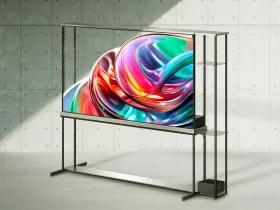
LG Signature OLED T 77 inch Ultra HD 4K Smart OLED TV