Lock screen and Always On Display on the Galaxy S26 Ultra
Automatic unlock based on location, notifications on the off screen, Now bar customization: what you can configure on the lock screen.
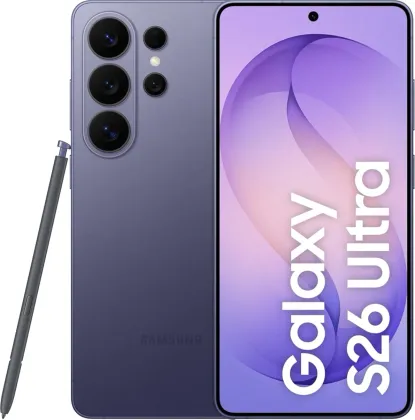
Automatically unlocking the phone in a trusted place
The Extend Unlock feature lets you designate trusted places or devices (such as your home or car): once detected, the phone stays automatically unlocked, without needing to enter a code. After four hours of inactivity, or after a restart, the regular unlock code becomes mandatory again for security.
Customizing what appears on the lock screen
The Now bar lets you choose which elements appear on the lock screen, while the roaming clock can display both your local time and your home time zone when traveling abroad. It's also possible to display certain contact information, such as an email address, directly visible on the lock screen — handy if the phone is lost.
Configuring Always On Display
Always On Display continuously shows basic information, such as the time or received notifications, even with the screen off. It can be configured to appear only under specific conditions (Settings > Lock screen and AOD > Always On Display > Show) rather than continuously, to limit its impact on the battery.
Reading a notification directly from the off screen
By enabling card-style display (Settings > Notifications > Lock screen > Cards), double-tapping a notification icon shown on the Always On Display lets you read its content without fully unlocking the phone.
The Zonelectro tip
Set Always On Display to appear only on a tap or a notification rather than continuously: everyday viewing comfort stays the same, with a noticeable battery gain over the course of the day.
This guide is about
 Samsung Galaxy S26 Ultra 5G