How to diagnose a sound problem on the iPhone 16
A weak speaker, a microphone that cuts out during calls, a silent ringer: how to find the cause before considering a repair.
Six common types of sound issues
Apple distinguishes between speaker failures (top and bottom of the device), ringer problems, microphone issues affecting call quality, and audio degradation during video recording.
Basic checks to do first
Check the volume setting, verify the position of the ring/silent switch, remove any case or protection, then clean the speaker and microphone openings with a small, soft, non-metallic brush to remove built-up dust — a very common cause of muffled or missing sound.
Test before assuming a failure
Running the Mobile Resource Inspector diagnostic suite and the built-in audio tests lets you isolate the problem before going further.
A multi-microphone design
A useful detail to know: the iPhone contains four separate microphones in different locations (bottom main, rear, front-facing, and a secondary bottom mic) — so a problem might only affect one of the four, which explains why some calls are affected and others aren't depending on the mode used (speaker, earpiece, video recording).
If the diagnosis points to a failed part
Replacement depends precisely on the model and the type of failure diagnosed: sometimes a single component (receiver, speaker, microphone) is enough, sometimes an entire assembly needs to be changed.
This guide is about
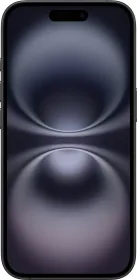
Apple iPhone 16