iPad Pro: diagnosing button and SIM card issues
An unresponsive top button, a fussy Touch ID, a rejected SIM card: the method before suspecting a faulty part.
Buttons and switches that stop responding
Check for debris or anything stuck, restart the device, then run the built-in diagnostic tests. On newer models, replacing the whole device or the display may be necessary depending on which button is affected.
Touch ID not recognizing a finger
Some people naturally lack the impedance needed to properly activate a biometric sensor — a normal phenomenon, not a device fault. Cleaning the sensor and making sure fingers are dry is the first move: moisture, lotions, sweat, oils, cuts, or particularly dry skin can all affect fingerprint recognition. Diagnostic tests then help isolate a genuine hardware issue.
A rejected SIM card
A message like "Invalid SIM card" usually comes from a carrier authorization issue or an incorrectly installed tray. Check that the wireless plan is active, and that the SIM tray model used exactly matches the iPad's.
A common baseline across all these symptoms
Clean the affected area, restart the device (normally, then with a force restart if needed), check the tech specs, run Apple's diagnostic suites, and consult the dedicated support articles before considering a part replacement.
This guide is about
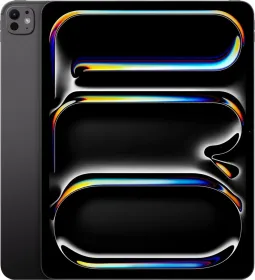
 Apple iPad Pro 13 2024 Tablet 5G (2TB + Standard Glass)