How to diagnose a display problem on the iPhone 16
Brightness that won't adjust, a flickering screen, unresponsive touch: how to find the real cause before replacing the display.
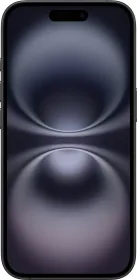
Sensor-related issues
If brightness no longer adjusts automatically, the compass drifts, or the screen behaves oddly during a call (for example not turning off against your ear), start by removing your case and any accessories, gently cleaning the screen, and checking that no magnetic accessory is nearby — these sensors are sensitive to it.
A black, distorted, or flickering screen
A screen that stays black, shows incorrect colors, flickers, or has defective pixels calls for cleaning and a check of the power connections first, before running the built-in software diagnostic to isolate the real cause. Apple notes that replacing a part doesn't always fix the issue if the cause lies elsewhere (connectors, logic board).
Touch that no longer responds well
Multi-Touch or Haptic Touch responsiveness that becomes slow or inconsistent, across the whole screen or only in specific spots, follows the same step-by-step diagnosis rather than an immediate replacement.
The method to follow, in order
Remove accessories, clean carefully, run the Mobile Resource Inspector diagnostic suite, then physically inspect the internal connectors for damage. Replacing the display only comes as a last resort, if the problem persists after all these steps.
This guide is about
Apple iPhone 16