MSI Titan 18 HX AI: diagnosing common problems
No power, an unresponsive screen, slowdowns, flaky Wi-Fi: the checking method before you start to worry.
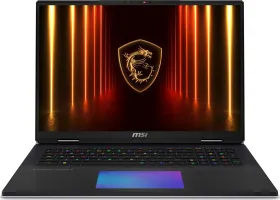
The laptop won't turn on
First check that the power adapter is securely connected to both the laptop and a working wall outlet, and look at the power indicator light. If the battery is completely drained, let it charge for a few minutes before trying to power on again — a laptop that looks dead may simply be out of charge.
A black screen or a flickering image
Connecting an external monitor helps determine whether the problem is really the internal screen or the graphics card itself. Update graphics drivers if needed. The Fn + F2 combination cycles through display modes (internal, external, duplicate, extend) — useful for ruling out a simple display-mode mix-up rather than a real fault.
The laptop is unusually slow
Task Manager (Ctrl+Shift+Esc) lets you spot a background app consuming a disproportionate amount of resources. Also check the available space on the SSD — storage that's nearly full slows the system down. Overheating can cause slowdowns too: make sure the ventilation vents are clear, and consider a cooling pad for extended heavy use.
Wi-Fi or Bluetooth isn't working
First check that Wi-Fi and Bluetooth are actually enabled in Windows settings, then restart the router or the Bluetooth device in question. If the problem persists, update the wireless drivers. To actually benefit from Wi-Fi 7, the router itself needs to support this recent standard — otherwise the connection automatically falls back to an earlier one.