How to type and send messages on the Samsung Galaxy S26 Ultra
Keyboard, shortcuts, voice dictation, automatic translation: everything you need to know to write quickly and accurately on the Galaxy S26 Ultra.
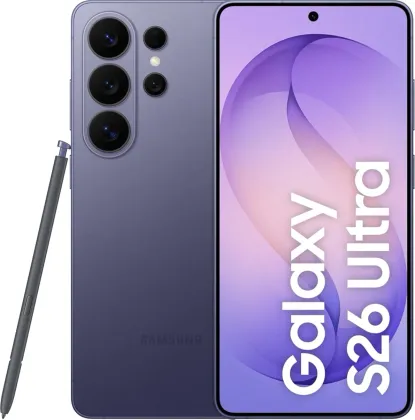
A keyboard that appears automatically, right when you need it
On the Galaxy S26 Ultra, there's nothing to activate: the keyboard pops up automatically as soon as you tap a text field, whether in Messages, a form, or a note. The layout follows familiar conventions (letters, numbers accessible with a long press, an extended space bar), with a few practical additions: double-tapping the shift key locks capital letters, a dedicated key switches to symbols, and pressing enter moves to a new line, just like on a computer keyboard.
Switching language or keyboard type
If you regularly write in several languages, go to Settings > General management > Language and input > Manage input languages to add the ones you need. Once two or more languages are enabled, a dedicated key on the keyboard lets you switch between them without going back through settings.
The keyboard type itself is changed in the same place: select a language, then choose the layout you want. Anyone used to older keypad phones will even find a 3x4 layout, where each key groups several letters and you tap repeatedly to cycle through the characters until you get the one you want.
The input method button: voice dictation and quick keyboard switching
An icon in the navigation bar lets you switch input mode with a single tap. One tap switches to voice dictation to write by speaking, another lets you switch entirely to a different keyboard if you've installed several. A long press on this icon opens a menu to choose which of these two actions it triggers.
If this icon doesn't appear in your navigation bar, it's probably disabled: go to Settings > General management > Keyboard, then enable the option that displays it on the navigation bar.
Advanced features, accessible from the keyboard toolbar
By expanding the toolbar above the keyboard, several useful shortcuts appear:
- Writing assist: spelling and grammar correction, tone adjustment, and generating text from a simple described topic — handy for quickly rephrasing a message.
- Avatars and stickers: insert custom stickers, including ones featuring your own likeness, directly into a conversation.
- Built-in translation: typed text can be translated on the fly before sending, or a received message can be translated directly within the messaging app.
- Quick clipboard: paste a previously copied item without having to go back.
- Handwriting mode and one-handed mode, useful respectively for taking notes with the stylus (on compatible versions) or for typing comfortably on the S26 Ultra's large screen with one hand.
Some of these options may vary slightly depending on your carrier or phone version.
Copy and paste text in three steps
- Press and hold the text you want to select.
- Adjust the selection by dragging the handles, or tap Select all to grab the entire text.
- Tap Copy or Cut, then press and hold where the text should be inserted and tap Paste.
Extracting text from a photo
The Galaxy S26 Ultra can also read text contained in an image. From the Gallery, open a photo containing text (a sign, a document, a screenshot) and tap the text extraction icon, which only appears when text is actually detected. Then simply select the relevant area to copy, share, or send that text directly in a message — a good way to avoid retyping everything by hand.
The Zonelectro tip
To write messages faster on a large screen like the S26 Ultra's, the most effective combination remains voice dictation for long messages, and one-handed mode for quick thumb-typed replies. This keyboard experience is identical across all three S26 models (S26, S26+, and S26 Ultra): the tips above therefore apply regardless of which model you choose.
This guide is about
 Samsung Galaxy S26 Ultra 5G