How to use Apple Diagnostics to test your iPhone 16 yourself
Display, touch, camera, Face ID, buttons: how to run a real hardware diagnostic on your iPhone, on the device itself or remotely.
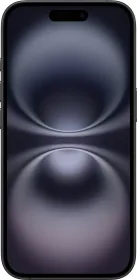
Two ways to run the diagnostic
Apple offers two methods: running the tests directly on the iPhone, or using a second device to run the diagnostic remotely from a web browser. Both give access to the same testing capabilities.
How remote diagnostics works
From a second device (Mac, PC, iPad, or iPhone), you access the Apple Diagnostics website and enter the serial number of the iPhone being tested. That device must first be put into "diagnostics mode" by holding the volume buttons while connecting it to a power source. Once the device is enrolled, the second device acts as a console for choosing and running tests.
What the diagnostic actually checks
Available tests vary by model but generally cover: pixel-level display quality, touch responsiveness, camera performance, Face ID sensors, button function, microphone and speaker, and an overall hardware component check.
What you need
An iPhone 12 or later (or iPad Air M2 or later) running iOS/iPadOS 17 or newer, a second device with a web browser, a Wi-Fi connection on the device being tested, and up-to-date software before you start.
This guide is about
Apple iPhone 16