Camera: the essential modes of the Galaxy S26 Ultra
Zoom, focus lock, portrait mode, night shooting, framing suggestions: the basics to get started with the camera.
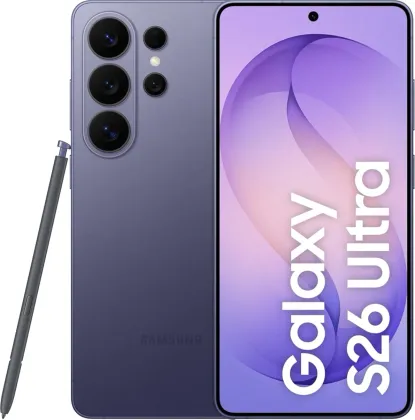
Taking a photo quickly, even from a locked screen
Double-pressing the side button opens the camera instantly, even from the lock screen — handy so you don't miss a moment while unlocking your phone. On the preview screen, a simple tap sets the focus area, and an adjustment bar lets you tweak brightness directly before shooting.
Mastering the zoom
The zoom level is changed by directly selecting one of the zoom icons shown on screen, or more precisely by dragging that icon, or with the classic two-finger pinch gesture. Beyond a certain magnification level, a guide map appears to show which area of the image the zoom is focused on.
Locking focus and exposure
A long press on the area you want to focus on locks both focus and exposure on that exact spot, even if the subject or lighting changes afterward. This setting stays active even after the photo is taken, which is useful for taking several shots under the same conditions.
Automatic framing suggestions
Once the Shot suggestions option is enabled in settings, Photo mode shows an on-screen composition guide: by orienting the phone to match the suggested frame to the actual scene, the guide turns yellow once the ideal composition is reached.
Portrait mode, for controlled background blur
Portrait mode separates the subject from the background to apply an adjustable-intensity blur, with several effects available and editable even after the shot. It works best with good lighting and a subject that's sufficiently sharp and distinct from the background.
Scanning a document or text directly from the camera
In Photo mode, the scan icon appears automatically as soon as a document or text is detected in the frame: simply select it to adjust the area, apply a filter, and save a clean scan, with no third-party app needed.
The Zonelectro tip
For close-ups (flowers, detailed objects), simply bring the main lens closer to the subject in 1x mode: the icon dedicated to enhancing close focus activates automatically and switches the phone into macro mode with no extra steps.
This guide is about
 Samsung Galaxy S26 Ultra 5G