Camera: advanced features and pro settings on the Galaxy S26 Ultra
Pro mode, dual camera recording, hyperlapse, RAW format: the advanced settings to take your photo and video further.
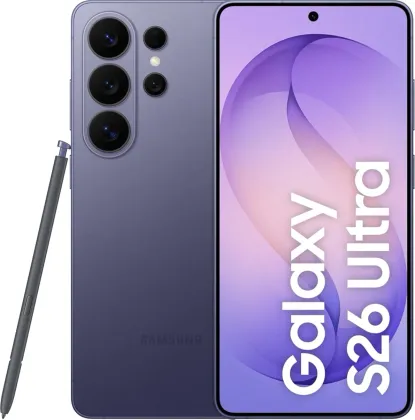
Pro mode, for full manual control
Accessible from MORE > PRO (or PRO VIDEO for video), this mode gives you control over exposure, ISO, and other settings that are usually automatic. Each option shows an explanation when you tap its dedicated info icon, and a reset button lets you return to default settings in one tap if the result doesn't suit you.
Filming with both cameras at once
The Dual recording feature captures simultaneously with two cameras (for example the front and rear cameras), with a choice between side-by-side display (split view) or picture-in-picture. Both streams can be saved separately for more flexible editing afterward.
Slow motion and hyperlapse video
Slow motion mode lets you record a video and then select a precise section to replay in slow motion, with up to two slow-motion segments that can be edited afterward. Conversely, Hyperlapse mode speeds up a scene filmed over time — handy for a sunset or a busy street — with a night variant designed to capture star trails or car light trails.
Filming in HDR, Log, or RAW for more advanced editing
For video, the settings let you enable 10-bit HDR for a better color range, or Log mode, which captures a wider dynamic range for color grading in post-production. On the photo side, Pro mode can save in RAW (DNG format) in addition to standard JPEG, preserving all the raw sensor data for the most demanding edits.
Enhanced stabilization and automatic subject tracking
The Super steady feature strengthens image stabilization during significant movement while filming. Auto-framing goes further by automatically adjusting the angle and zoom to keep a person framed as they move, with no manual intervention.
Panorama mode and food mode
Panorama mode automatically stitches together a series of photos taken in one continuous motion to capture a wide scene. Food mode, meanwhile, frames the subject to blur the background and lets you adjust the color temperature to make dishes look more appetizing in photos.
The Zonelectro tip
For videos you'll actually be able to edit properly, favor Log format over the automatic setting: the video will look flat when played back directly, but it will retain far more detail in the shadows and highlights once color-graded.
This guide is about
 Samsung Galaxy S26 Ultra 5G